
DVR Making a Beeping or Clicking Noise? Use the Sound Pattern to Find the Cause
An electronic beep, a hard-drive click, and a fan tick point to three different troubleshooting paths.
If your security-camera DVR is beeping or clicking, identify the sound before replacing the hard drive. A beep is usually the recorder’s buzzer reporting an event or exception. A physical click can come from the hard drive, fan, or another moving part. And if the DVR says No HDD, do not assume the drive is dead—a weak power adapter or poor HDD power connection can keep the disk from starting or being detected.
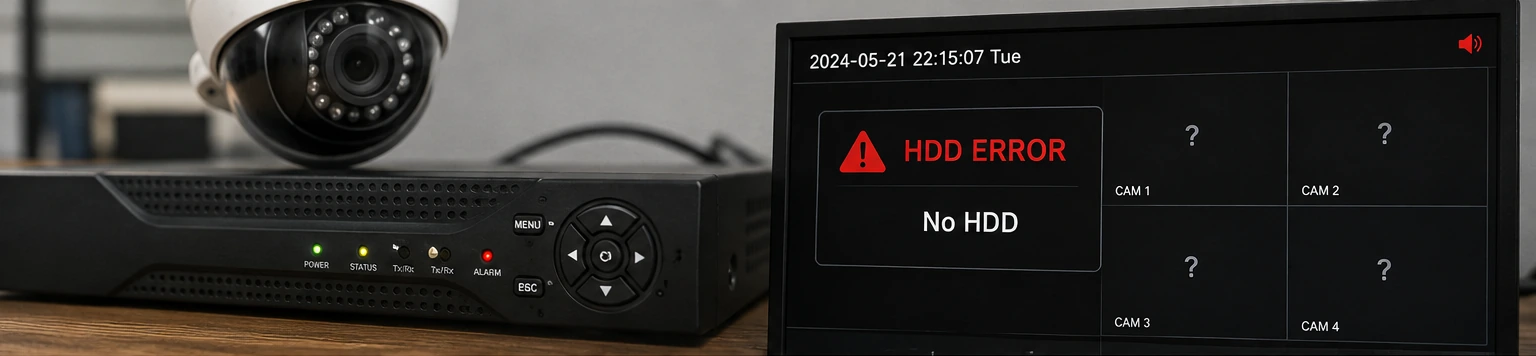
First: Is It an Electronic Beep or a Physical Click?
This distinction saves time. Recorders can make an intentional electronic warning tone through an internal buzzer, while the hard drive and cooling fan can make physical mechanical sounds. Treating every noise as a failed HDD can lead to replacing a perfectly usable drive—or missing a power problem that prevents the drive from starting.
Start in the DVR/NVR event, exception, alarm, or log menu. Common triggers include HDD errors, no disk, disk full, video loss, network problems, or a buzzer configured for motion.
Listen for whether it comes from the hard drive or fan. Some HDD clicking can be normal, but repeated abnormal clicking with recording or detection problems needs attention.
Check HDD status, cabling, and power before buying a replacement drive. A weak supply can create a misleading storage failure symptom.
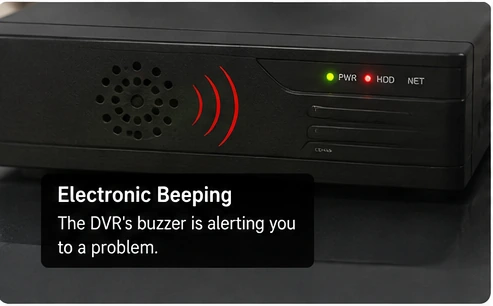
Open the recorder’s Storage/HDD page and its Event, Exception, Alarm, or System Log. Menu names vary by brand. Hikvision recommends checking the exception log for the cause of an audible warning; Reolink and Dahua also document buzzer alerts for storage and network exceptions.
Quick Diagnosis by Sound Pattern
Use the sound together with what the recorder is doing. The same beep can mean different things on different brands, so the on-screen HDD status and event log matter more than the tone alone.
| Sound or symptom | What it points toward first | Best next check |
|---|---|---|
| Beeping starts after boot and the screen says No HDD | HDD not detected, loose cable, insufficient HDD power, failed HDD, or storage interface issue | Check Storage/HDD status, then power down and inspect HDD power and SATA connections |
| Beeping but recording still works | Another enabled buzzer event such as motion, video loss, network disconnect, IP conflict, or disk-full warning | Read the Event/Exception log before changing hardware |
| Beep begins when one camera disappears | Video-loss or network exception on systems configured to sound for it | Check which channel went offline and whether the buzzer is enabled for video loss |
| Repeated physical click plus missing playback or HDD error | Hard-drive, power, or connection problem | Protect important footage, check HDD status, then troubleshoot power/cabling |
| Light/random HDD clicks but recording is normal | May be normal drive activity | Do not replace the HDD based on sound alone; verify health/status and recording |
| Ticking or scraping changes with fan speed | Cooling fan, debris, cable touching fan, or worn fan bearing | Power down before inspecting the fan area |
| DVR restarts or loses HDD only when the disk is connected | Power supply may be unable to handle the added startup load | Verify the recorder’s correct power adapter and its rated output before condemning the HDD |
Why a DVR or NVR Beeps
The buzzer is not a diagnosis by itself. It is an alert channel. Hikvision’s support guidance tells users to check the recorder’s exception log to find the reason for an audible warning. Reolink documents motion, video loss, HDD full, HDD error, network disconnect, and IP conflict as possible buzzer triggers, depending on model and interface. Dahua manuals likewise allow the buzzer to be tied to abnormal events such as no disk, disk error, no space, and network conditions.
Silencing the warning can make the room quiet without fixing the cause. Identify the triggering event first, then decide whether the event needs repair or whether that particular buzzer notification is simply unnecessary for your setup.
DVR Beeps and Says “No HDD” or “HDD Error”
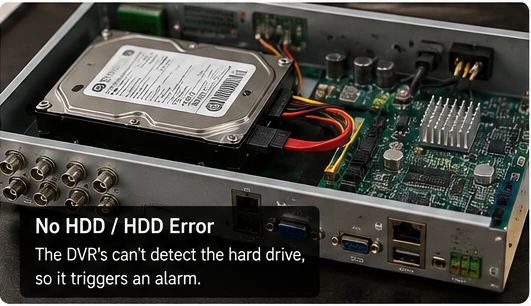
This is the point where many people immediately buy another hard drive. Do not. No HDD means the recorder is not successfully detecting a usable drive; it does not tell you which part of the path failed.
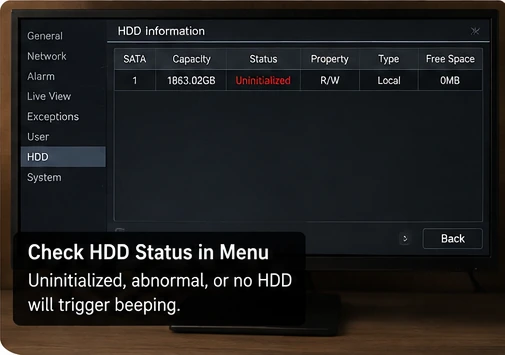
If the disk is listed but marked Uninitialized, the recorder sees something different from a completely missing disk. Initialization or formatting may erase existing footage, so do not do it casually if recordings matter.
Disconnect power, then check that the SATA data connector and HDD power connector are fully seated. Hikvision specifically recommends confirming both power and SATA connections when no HDD is detected.
A loose connector, damaged cable, or poor contact can make a good drive disappear intermittently.
If power, cabling, compatible hardware, and the recorder’s storage interface have been checked and the HDD remains abnormal or undetected, the drive becomes a much stronger suspect.
If the recorder suddenly shows an existing drive as uninitialized or asks to format it, do not initialize it just to stop the beep when footage is important. First decide whether you need to preserve or recover the recordings.
The Overlooked Cause: A Weak DVR Power Adapter
A DVR can appear to power on normally while its adapter is no longer strong enough to supply the full load when the hard drive starts. This is especially misleading because the front LEDs and menu may work, yet the recorder can show No HDD, beep, restart, or lose the drive intermittently.
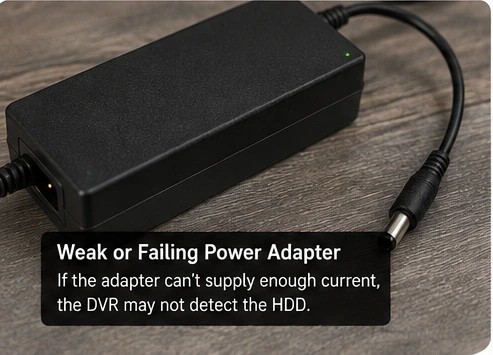
If the recorder is stable with the HDD disconnected, but starts beeping, rebooting, or failing to detect the disk when the HDD is connected, include the power adapter in the diagnosis before replacing the hard drive. This pattern does not prove the adapter is bad, but it tells you the added HDD load matters.
The electrical reason is straightforward. A mechanical surveillance HDD needs more current while its platters spin up than it does during low-power idle. For example, Seagate SkyHawk documentation lists roughly 1.8 A on the 12 V rail during spin-up for one model family, versus much lower current after startup. The exact requirement varies by drive. If the recorder’s supply voltage sags or the adapter cannot deliver the required current under load, the HDD may fail to start or communicate reliably.
Reolink’s current No HDD troubleshooting guidance explicitly tells users to check the NVR power supply and make sure a non-original adapter provides enough power. That supports an important rule: HDD not detected is not automatically HDD failed.
Use the recorder manufacturer’s specified voltage, connector, and polarity. The replacement supply must have sufficient current capacity for the recorder. Some DVRs use 12 V supplies while some NVR/PoE systems use different voltages, so copy the specification from the recorder label or official manual rather than assuming.
Check HDD Power and SATA Connections Safely
If the recorder reports a missing or abnormal disk, the internal connections are the next low-cost check—but only with the recorder powered off and unplugged.
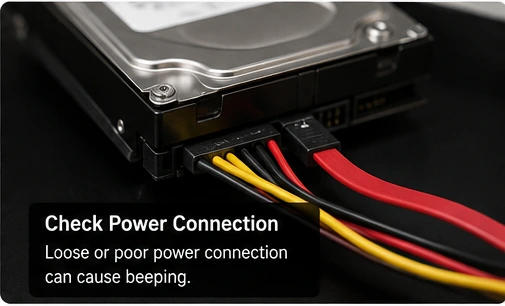
If the drive appears after reseating and then disappears again later, do not consider the problem solved. Intermittent detection can still point to a weak connection, cable, supply, drive electronics, or recorder storage interface. The pattern after the repair attempt matters.
If the Sound Is Clicking, Listen Before You Replace the HDD
Hard drives are mechanical devices, so not every click means failure. Western Digital notes that healthy drives can make clicking sounds during normal operation, including periodic clicks and sounds associated with drive activity. The warning sign is a new, repeated, unusual mechanical sound combined with a functional symptom such as HDD errors, missing recordings, failed playback, a drive that disappears, or a recorder that cannot initialize or record reliably.

| Click pattern | How to interpret it | What to do |
|---|---|---|
| Occasional light click, recordings and playback normal | Can be normal mechanical drive activity | Check HDD status and monitor; do not replace based only on the sound |
| Repeated click or seek-like cycle plus HDD Error / No HDD | Drive, power, or connection problem becomes more likely | Protect footage, check power/cables, then test the storage path |
| Clicking starts at boot, then recorder restarts | Could involve HDD startup, power supply overload/voltage sag, or drive fault | Check correct power supply before assuming the disk itself is bad |
| Ticking clearly comes from fan area | Fan blade obstruction, loose cable, debris, or worn fan | Power down and inspect; do not put fingers/tools near a spinning fan |
When a drive begins making a new abnormal mechanical noise and storage errors are appearing, repeated rebooting, formatting, or stress-testing can be a poor first move. Export critical footage while the system can still read it, if doing so is safe and practical.
What If the HDD Is Normal but the DVR Still Beeps?
Once the storage page shows the HDD is healthy and recording, return to the recorder’s event log. Depending on brand and configuration, the buzzer may be responding to something unrelated to the hard drive.
- Video loss: a camera or channel disappeared.
- Network disconnected: the recorder lost its network connection.
- IP conflict: two devices are trying to use the same address on a supported system.
- Motion buzzer: some NVRs can intentionally beep when a configured motion event occurs.
- HDD full / low free space: behavior depends on overwrite and exception settings.
- PoE or device-specific exception: some NVRs expose additional hardware or PoE warnings.
If the beep coincides with cameras going offline, use our Security Camera Keeps Going Offline guide to separate a camera-specific failure from a shared network or power problem.
The Best Troubleshooting Order
Instead of swapping parts randomly, follow the symptom from the recorder outward:
Electronic beep, mechanical HDD click, fan tick, or another vibration?
Find the exception that triggered the buzzer and note whether the drive is Normal, Full, Uninitialized, Abnormal, or Missing.
Verify the correct adapter and look for the pattern where adding the HDD causes beeping, rebooting, or failed detection.
Reseat the HDD power and SATA data cables. Never reconnect internal cables while the recorder is energized.
A normal-status drive that occasionally clicks is different from a drive that repeatedly clicks while recordings disappear.
Adapter, cable, HDD, fan, and recorder storage hardware are different failures. The goal is to identify which path is actually failing.
When to Stop Troubleshooting
Stop and get professional or manufacturer support if the recorder has a burnt smell, visible heat damage, a damaged power connector, liquid exposure, repeated shutdowns with a known-good correct supply, or important footage on a drive that is making severe new mechanical noises. Component-level power-supply or board repair should not be attempted while energized.
For a recorder still under warranty, check the warranty terms before opening the chassis or replacing the factory HDD. For business or security-critical systems, preserving footage and minimizing downtime may be more important than extended DIY testing.
Frequently Asked Questions
Why is my security camera DVR beeping?
The beep is usually an internal buzzer reporting an event or exception. Depending on the recorder, that can include HDD error, no disk, disk full, video loss, network disconnect, IP conflict, motion, or another configured alarm. Check the event/exception log instead of guessing from the sound.
Can a weak power adapter make a DVR say No HDD?
Yes, it can be part of the diagnosis. A mechanical HDD draws extra current during spin-up. If the recorder’s supply cannot maintain the required power under load, the disk may fail to start or be detected reliably. Reolink specifically includes checking for sufficient NVR power when troubleshooting No HDD.
Does a clicking hard drive always mean it is failing?
No. Hard drives can click during normal operation. Be more concerned when the clicking is new or repetitive and appears together with HDD errors, missing recordings, failed playback, disappearing storage, or other abnormal behavior.
Why does my DVR beep after I install a new hard drive?
Check whether the recorder detects the new disk and whether it is compatible and initialized for that recorder. Also verify the power and SATA connections. Initialization can erase data, so never initialize a drive containing footage you need to keep.
Can I just disable the DVR buzzer?
You can disable buzzer events on many recorders, but first identify why it is sounding. Muting an HDD Error or No HDD warning does not restore recording.
Why does the DVR reboot when the hard drive is connected?
That pattern can point toward a failing HDD, a short or connection problem, or a power supply that cannot support the added startup load. Verify the correct power supply and storage connections before replacing the drive.
Final Thoughts
A noisy DVR becomes much easier to diagnose once you separate the recorder’s electronic beep from a physical click inside the case. For beeping, read the exception first. For clicking, pair the sound with HDD status and recording behavior. And when the recorder says No HDD, remember the often-overlooked power path: a weak adapter can let the DVR turn on while still failing to give the hard drive enough power to start reliably.
The useful question is not “Which part should I buy?” It is “What changed when the sound started?” That answer—No HDD, lost recording, camera loss, rebooting, or only a harmless operating click—usually tells you which path to test next.
Technical References
Recorder menus and buzzer events vary by brand and model. The diagnostic guidance above was cross-checked against manufacturer documentation for DVR/NVR exceptions, HDD detection, drive noise, and surveillance-drive power requirements.
- Hikvision Support — My NVR Is Making a Loud Beeping Noise
- Hikvision Support — Audible Warning / HDD Error
- Reolink Support — The NVR Keeps Beeping
- Reolink Support — No HDD Detected on NVR
- Dahua — Network Video Recorder User Manual (Abnormality / Buzzer Events)
- Western Digital Support — Reasons for Hard Drive Noise
- Seagate SkyHawk Product Manual — Power Requirements and Spin-Up Current