
Security Camera Keeps Going Offline? Use the Pattern to Find the Real Cause
One camera dropping offline points in a different direction than every camera disappearing at once.
If your security camera keeps going offline, do not factory-reset it first. Start with the pattern: which cameras disconnect, whether the rest of your internet still works, how the camera is powered, and when the dropouts happen. Those clues usually narrow the problem much faster than changing random router settings.
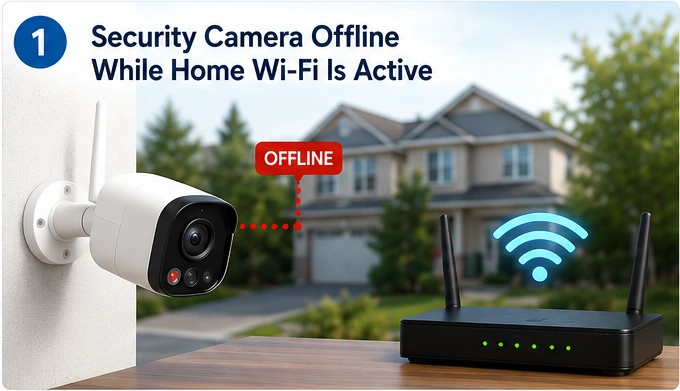
Confirm What “Offline” Actually Means
Before changing Wi-Fi settings, make sure the camera is truly losing its connection. A frozen app screen, delayed live view, a sleeping battery camera, and a camera that has lost power can all look similar at first.
While the camera shows Offline, connect your phone to the same home Wi-Fi, turn off mobile data, and open a normal website. If the website also fails, the camera may be reporting a wider internet or router problem rather than a camera-specific failure.
| What you see | Most useful first suspicion | First check |
|---|---|---|
| One camera is offline; the others work | Camera power, local Wi-Fi signal, placement, or that camera’s settings | Check power and signal at that camera |
| All cameras go offline together | Router, modem, internet service, hub/base station, or shared power | Check another Wi-Fi device and the router |
| Camera drops offline randomly | Weak/intermittent Wi-Fi, power interruption, interference, network load, or scheduled reboot behavior | Look for a repeatable time or condition |
| Camera is online but live video buffers or skips | Weak signal or insufficient upload bandwidth | Test Wi-Fi near the camera |
| Camera went offline after changing the router or Wi-Fi password | Saved network credentials no longer match | Reconnect the camera to the current network |
A reset can erase settings and, on some systems, require the camera to be removed and added again. Use it after power, internet, signal, and network settings have been checked—not as the first step.
Is One Camera Offline or Are All Cameras Offline?
This is the fastest way to split the diagnosis. If several cameras fail at the same time, they usually share something upstream. If one camera fails while the others remain stable, focus on what is unique to that device.
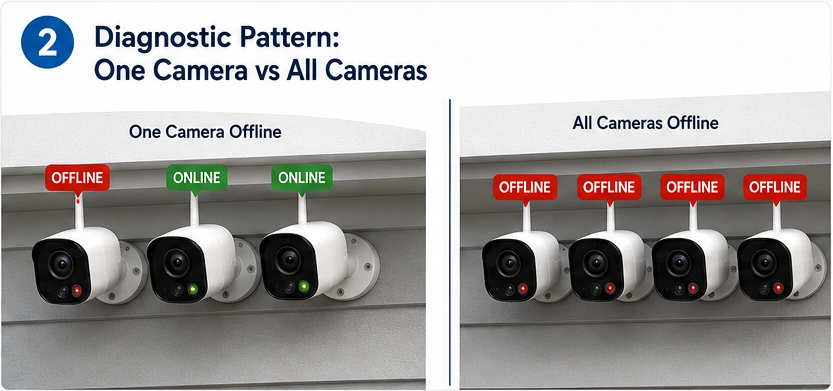
If only one camera is offline
Do not reboot the entire network first. Check whether that camera has power, whether its app reports weak signal, and whether moving temporarily closer to the router improves stability. Reolink specifically recommends checking the camera’s power source, Wi-Fi signal, antenna where applicable, firmware, and router environment when a single Wi-Fi camera keeps disconnecting.
If every camera goes offline together
Test another device on home Wi-Fi. If phones and laptops also lose internet, work from the modem/router outward. If normal Wi-Fi still works but every camera disappears, check any shared camera hub, base station, NVR, PoE switch, or separate camera network before troubleshooting each camera individually.
Check Wi-Fi Signal Where the Camera Is Installed
A camera can show full internet service inside the house and still have a poor link at an exterior wall, garage, gate, porch, or detached structure. Distance is only part of the problem. Brick, stucco, metal, appliances, floors, mirrors, and other electronics can weaken the path between the camera and router.
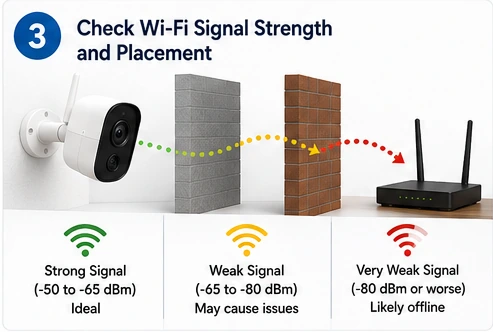
Use the value as a brand-specific clue. Do not assume every camera uses the same scale or the same threshold for a good connection.
Connect the phone to the same Wi-Fi and test near the camera. A good result beside the router but a poor result at the camera points toward coverage or interference.
Exterior walls, metal siding, masonry, refrigerators, large appliances, and multiple floors can matter more than a few extra feet of distance.
If the camera becomes stable in a better location, you have strong evidence that coverage—not the camera electronics—is the main problem.
The illustration uses simplified signal ranges. Treat them as a visual guide, not a universal camera standard. Ring’s current guidance, for example, rates 0 to -60 RSSI as great, -60 to -70 as okay, -70 to -80 as poor with possible interruptions, and -80 or worse as very poor with intermittent service or offline behavior. Other brands may report signal differently.
Verify the Power Source Before Blaming Wi-Fi
A camera that loses power can appear exactly like a camera that lost the network. The check depends on how the camera is powered: battery, plug-in adapter, low-voltage doorbell wiring, or Power over Ethernet.
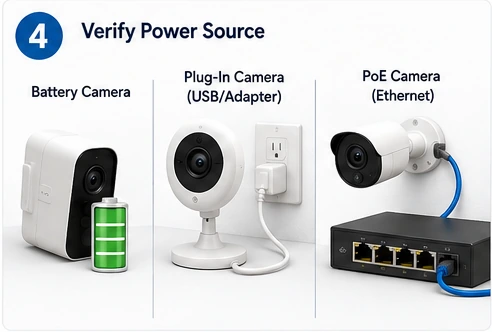
Check the actual battery level in the app, not just the last notification. Recharge if low and note whether cold or hot conditions line up with the dropouts. Some battery cameras also sleep between events, which should not automatically be treated as a network failure.
Make sure the adapter is fully seated at the camera and outlet. If practical, test the outlet with another device. Use the manufacturer-specified adapter rather than a random replacement with unknown voltage or current.
Check the Ethernet connector, cable path, PoE switch or injector, and whether the corresponding network-port lights remain active when the camera goes offline. If multiple PoE cameras fail together, inspect the shared switch or injector first.
Do not open mains-powered adapters, network power supplies, junction boxes, or hardwired electrical equipment while energized. For doorbell or hardwired-camera wiring, follow the model’s installation instructions and shut off the appropriate circuit before touching conductors. If you are unsure which circuit or voltage is involved, use a qualified installer or electrician.
If It Keeps Disconnecting, Look for a Pattern
An intermittent camera is easier to diagnose when you stop treating every dropout as random. Write down when it happens and what else is happening on the network or around the camera at that time.
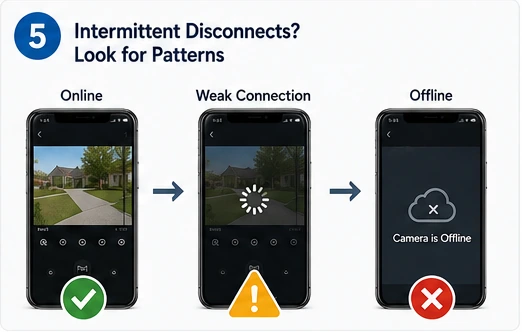
| Pattern | What it can point toward | What to check next |
|---|---|---|
| Fails at about the same time every day or week | Router/camera scheduled reboot, automation, network maintenance, or a repeating interference/load pattern | Check schedules, auto-reboot features, and router logs if available |
| Fails when several people stream, game, or video-call | Bandwidth or router-capacity problem | Compare performance during quiet and busy network periods |
| Fails mostly at night | Possible power, Wi-Fi environment, or model-specific behavior when night features activate | Check power stability and whether the failure begins when IR/night mode starts |
| Fails only in extreme heat or cold | Operating-temperature or battery behavior | Check the model’s rated temperature range and battery guidance |
| Fails after router replacement or password change | Old network credentials or unsupported router settings | Reconnect using the current SSID/password and supported security mode |
| Live view fails but stored/local recording continues | Internet/cloud path rather than complete camera power loss | Check internet access, app/cloud service, and the model’s offline-recording behavior |
Reolink’s current troubleshooting guidance specifically recommends looking for regular disconnect intervals, checking scheduled auto-reboot behavior, testing another router or hotspot, and comparing the problem with a wired connection when the camera supports Ethernet.
2.4 GHz vs 5 GHz: Use the Band Your Camera Actually Supports
Do not force a camera onto a band just because one is “faster.” For outdoor and edge-of-home devices, stable coverage is usually more important than peak throughput.
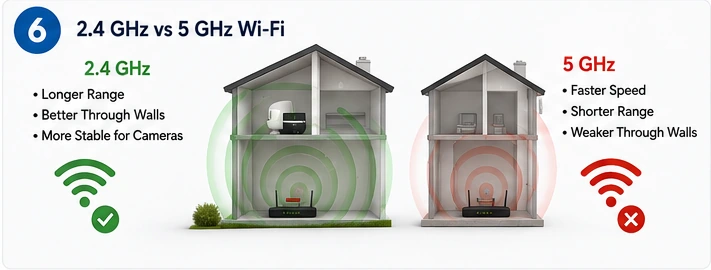
As a practical rule, 2.4 GHz usually travels farther and penetrates walls better, while 5 GHz often provides more speed over shorter distances. But the correct choice is model-specific. Some cameras support only 2.4 GHz, some support both bands, and some mesh systems steer devices automatically.
Check the camera’s official specifications and support page. If the model supports both bands and is unstable at a distant outdoor location, testing 2.4 GHz can be useful. Ring’s offline-device guidance specifically suggests trying a different 2.4 GHz network instead of 5 GHz when a device keeps disconnecting. Do not change router security or channel settings blindly if the camera is otherwise stable.
Use This Flow to Find the Real Cause
By this point, you should be able to place the failure in one of five areas: power, internet, local Wi-Fi, the camera/app connection, or a model-specific problem.
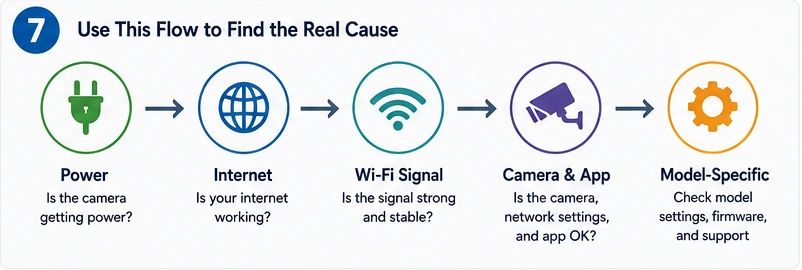
Is the camera actually powered, charged, and using the correct adapter, PoE source, or wiring?
Can another device use the same home internet connection while the camera is offline?
Is the camera’s signal strong and stable at its installed location, not just beside the router?
Does the camera show an error code, stale credentials, outdated firmware, or a network-change prompt?
If the basic path is clean, use the manufacturer’s exact model guide before changing advanced router settings or resetting the camera.
When Should You Restart or Factory-Reset the Camera?
A normal restart is reasonable after you have confirmed power and network availability. Restart the camera using the manufacturer’s documented method, then give it time to reconnect. Restarting the modem/router can also make sense if several devices are affected.
A factory reset is different. It can remove Wi-Fi credentials, pairing, automations, and other settings. Google Nest, for example, warns that a factory reset can permanently delete camera video history. Save anything important and follow the exact model instructions before resetting.
When the Problem Is Probably Camera-Specific
If only one camera keeps dropping offline after you have confirmed stable power, strong signal, working internet, correct Wi-Fi credentials, and current firmware, the remaining possibilities become more model-specific. That can include a failing power adapter, damaged Ethernet cable, antenna issue, firmware bug, internal hardware problem, or incompatibility with a router setting.
At that point, collect the camera model, firmware version, router model, signal reading, error code, and the times the camera disconnects. That information is much more useful to manufacturer support than simply saying the camera is “offline.”
A universal repair-cost table is not useful for this problem. Consumer security cameras range from inexpensive battery units to multi-camera PoE systems, and many brands handle failures through warranty replacement rather than component-level repair. Diagnose the cause first, then compare the price of the specific replacement part, network improvement, professional service, or camera replacement.
Frequently Asked Questions
Why does my security camera keep going offline when the Wi-Fi works?
The home internet can work normally while the camera still has weak signal at its exact location, loses power, has stale Wi-Fi credentials, or encounters a camera-specific setting or firmware problem. Check whether only that camera is affected before changing the whole network.
Why does only one security camera keep disconnecting?
When other cameras remain online, focus on what is unique to that device: its power source, distance and obstacles to the router, antenna or Ethernet cable, network credentials, firmware, and physical environment.
Should security cameras use 2.4 GHz or 5 GHz Wi-Fi?
Use a band the camera officially supports. 2.4 GHz generally provides more range and better wall penetration, while 5 GHz can provide more throughput at shorter range. For a distant outdoor camera, stability matters more than peak speed.
Can weak Wi-Fi make a camera go offline instead of just lowering video quality?
Yes. Weak signal can cause delayed live view, interruptions, failed uploads, and complete offline events. Ring’s current guidance says very poor RSSI can cause intermittent service or falling offline.
Will a security camera still record if the internet goes down?
It depends on the camera and where it records. Some models can continue local recording to a microSD card, NVR, or hub while remote live view and cloud features stop. Other cameras depend heavily on cloud connectivity. Check your model’s offline-recording behavior rather than assuming.
Should I factory-reset a camera that keeps going offline?
Not first. Confirm power, home internet, Wi-Fi signal, credentials, and firmware before resetting. A factory reset can erase settings and may remove stored history or require full setup again.
Final Thoughts
When a security camera keeps going offline, the pattern is the diagnosis. One camera points you toward that camera’s power, placement, and connection. All cameras going offline together points upstream toward the router, internet, hub, or shared network equipment. Intermittent failures become easier to solve when you note the time, signal, power state, and what the rest of the network was doing.
Still stuck? In the comments, include whether one camera or all cameras go offline, how the camera is powered, the camera model, and when the disconnect happens. Those four details make the next troubleshooting step much easier to narrow down.
Official References
Technical guidance in this article was cross-checked against current manufacturer support documentation. Exact Wi-Fi bands, signal scales, power requirements, and offline behavior vary by model.